

Dive into the World of Sitecore Custom Tabs
Ever found yourself weaving through a maze of Sitecore items and wishing for an easier way to access relevant information? If you’re nodding yes, you’re not alone. The magic of Sitecore isn’t just in its robust capabilities, but also in how well it can be tailored to fit your needs. One often underutilized feature is the ability to add custom tabs within the Content Management (CM) Server. This little trick not only streamlines your workflow but also personalizes your Sitecore experience—something every Sitecore professional can appreciate.
Gear Up with the Basics
Before embarking on your tabbing adventure, let’s ensure you’re properly equipped. First, make sure you’re running Sitecore XP/XM (not XM Cloud!). You’ll also need the right permissions to modify Sitecore items and a good handle on the Core database. Familiarity with Sitecore’s architecture and templates will be your compass as we navigate through this customization journey. Got all that? Great! Let’s roll up those sleeves and get into the action.
Core Database: The Untapped Goldmine
The roadmap to custom tabs begins in Sitecore’s under-the-hood gem: the Core database. This database is the puppet master of configurations and UI elements, orchestrating how content editors interact with Sitecore. Venture into the /sitecore/content/Applications/Content Editor/Editors/Items path, where you’ll find the heart of our customization process. It’s here that you’ll lay the groundwork for your dynamic custom tabs.
Create, Associate, Deploy: Your Game Plan
Crafting Your Custom Editor
Let’s get hands-on. Start by crafting your own editor item. Navigate through Sitecore to create an item with the /sitecore/templates/Sitecore Client/Content editor/Editor template. Name it wisely—this will be your custom tab’s identity. Next, direct your attention to the Url field. Point this to the .aspx file dwelling in your Sitecore project—it’s where your tab’s logic will thrive.
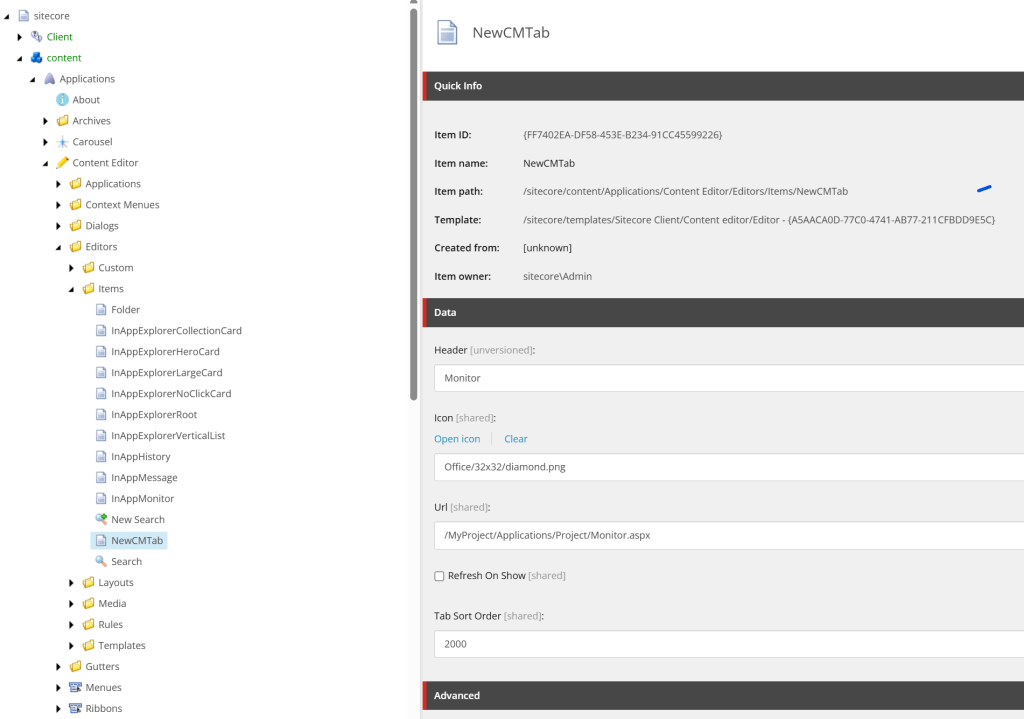
Bridging the Gap to Your Items
Now, let’s connect the dots. Your shiny new tab needs association with Sitecore items or templates. You’ve got two ways to go about this:
Route 1: Specific Item Addition
- Head to the Sitecore item of choice and find the “Appearance” section.
- Add your custom editor to the “Editors” field, then save it. Voilà, a unique tab just for this item.
Route 2: Template Standardization
- Find the template you’d like to enhance.
- In its Standard Values, slot in your custom editor under “Editors”, then save. Every item using this template will now flaunt your custom tab.


Test, Tweak, and Triumph
Once the setup is done, it’s proof-of-concept time. Refresh your Content Editor, and keep your fingers crossed that the new tab reveals itself when you inspect the modified item or template. Yay !
Wrap Up and Forge Ahead
Adding custom tabs in Sitecore is more than a simple enhancement—it’s a testament to the flexibility and power of Sitecore as a platform. By following this guide, you’ve not only polished your Sitecore expertise but also opened doors to more tailored experiences for your team and users.
So, what are you waiting for? Dive into these customizations and let your Sitecore environment reflect your vision. And remember, each tweak not only builds efficiency but adds a personal touch to the digital landscape you’re creating. Here’s to making the most out of your Sitecore world—happy customizing!
In the next part of this article, I will show you how to use NextJS instead of good old Razor pages in this very new tab. Stay tuned !
 jesuissitecore.com